Two-step verification adds another layer of security to your Ancestry® account by requiring a code from your phone, email, or authenticator app when signing in with your Ancestry password. It’s best to set up multiple means of two-steps verification (like both phone and email, for example), so that if you can’t access one, you can still use the other one.
Using two-step verification is not only a good security practice; it’s also required to access some features. For example, to access ThruLines® or DNA matches, you must:
You can enable, change, or disable two-step verification anytime in Account Settings.
Enabling two-step verification
You can set up two-step verification using your phone, email, or an authenticator app (like Google Authenticator.)
- Go to Account settings. If prompted, sign in.
- Under Account information, choose Two-step verification.
- Next to Email, Phone, or Authenticator app, select Enable.
- Phone: enter your mobile phone number and select Continue. We’ll send a 6-digit verification code to that mobile phone number. Message and data rates apply.
- Email: check your email inbox for the 6-digit verification code (it may take a few minutes). Not getting emails?
- Authenticator app: open an authenticator app (like Google Authenticator) and scan the QR code or manually enter the setup key.
- Enter the code, then select Submit Code. Codes are valid for about 10 minutes and can be attempted up to 10 times.
- Copy your one-time recovery code and store it in a safe place, then select Finish or Continue.
- To print your emergency recovery code, select Print.
- Set up a second means of two-step verification. (For example, if you picked email for the first one, add your phone number or authenticator app for the second one.)
Disabling two-step verification
If you have two-step verification enabled for more than one thing (like both email and authenticator app, for example), disabling one won’t disable the other. You’ll need to disable both if you want to turn two-step verification off completely.
- Go to Account settings. If prompted, sign in.
- Under Account information, choose Two-step verification.
- Next to Email, Phone, or Authenticator app, click Disable.
- If prompted, verify your account by entering a code sent to your email or your Ancestry password.
- Select Continue.
Changing how you receive verification codes
If you're not signed in:
- Sign in with your email/username and password.
- Under the submit code button, select More Options. This option is only available if you have two-step verification set up via phone or authenticator app. If you have only email set up for two-step verification, you’ll need to use your recovery code to enter your account (see step 3).
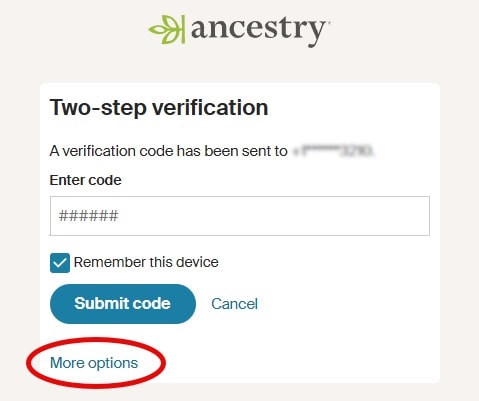
- Choose Use a different method for two-step verification. If you don't see this, use an emergency recovery code.
- Enter the code, then select Submit Code.
If you're signed in:
- Go to Account settings. If prompted, sign in.
- Under Account information, choose Two-step verification.
- Click Enable next to Email, Phone, or Authenticator app and follow the on-screen directions (outlined in step 3 above).
Using an emergency recovery code
Using an emergency recovery code will disable two-step verification and allow you to sign in. You can re-enable two-step verification at any time and receive a new recovery code.
If you know your emergency recovery code:
- Sign in with your email/username and password.
- When asked for a code, under the Submit code button, click More Options.
- Choose Use Emergency Recovery Code.
- Enter your one-time emergency recovery code and select Submit code.
If you don't know your emergency recovery code:
Contact us.
Troubleshooting
Can’t scan the QR code
Manually enter the setup key.
- Under the QR code, click Unable to scan?
- In your authenticator app, add a new account and go through the account setup steps.
- When prompted, enter the key provided.
- If asked, use “Ancestry” as the account name.
- If available, turn on Time-based (or similar option).
- Once setup is complete, return to Ancestry and click Continue.
For help with your authenticator app, visit its support site or contact their support team.
Multiple verification codes
If you received multiple verification codes, use the most recent code—only the newest code works.
Not getting verification code emails
Verification code emails can take a few minutes to arrive. If you're not receiving verification code emails, try these steps:
- Check Not Getting Ancestry® Emails for help.
- If you still don’t receive the verification code email, change how we send the code or how you sign in to Ancestry.
Can't access verification codes
If you can't access the phone number or email address set up to receive verification codes, change how you receive verification codes or use the one-time emergency recovery code you received when setting up two-step verification to disable it.
Ancestry linked with Apple or Google but still asked for a code
Sign out of Ancestry and sign back in using Apple or Google. Remember to choose “Sign in with Apple/Google” instead of entering your Ancestry username/email and password.
Verification code help
For more help with Ancestry verification codes, contact us.
For help with Google or Apple verification codes, select the company whose code you’re having trouble with:
Ancestry app troubleshooting
Navigating away from the Ancestry app to retrieve a verification code from a messaging app may require you to sign in again and generate a new code, cancelling the one you just received. Instead of navigating away from the Ancestry app, pull down your notification bar to copy the code from the message notification and paste it into the app, or allow your device to detect verification codes in text messages and automatically fill them in.
Staying signed in
To stay signed in for 180 days on the device you're using, when signing in, check the box to "Remember this device." If you sign out, you may be asked to enter a new verification code when you sign in again.
Shared account
Each Ancestry account is intended for only one user, and two-step verification allows only one phone number or email address to be used for verification purposes.
Multiple accounts connected to the same email address
If you have more than one Ancestry account associated with the same email address, you can select which account you want. Accounts with two-step verification enabled will be marked with a shield icon.